

Has your Windows PC become sluggish, unstable, or riddled with random glitches? It’s not uncommon for computers to lose their speed and stability over time, leaving you wondering if a fresh start is the solution. You may ask: “Wouldn’t resetting my PC make it faster?” While it may sound extreme, resetting your computer can indeed restore its performance. But how often should you do it?
In this post, we’ll explore what it means to reset a Windows PC, why resets are needed less frequently now, and when it’s actually worth taking the time to do it.
What Does “Resetting” Your PC Mean?
Resetting your PC goes beyond simply restarting it. It involves reinstalling the entire Windows operating system, which means erasing system settings, programs, and the accumulated digital clutter that may be slowing things down. A proper reset typically includes the following steps:
- Backing up your personal files.
- Reinstalling Windows, either through the “Reset this PC” feature or by performing a clean installation with a bootable USB.
- Reinstalling applications, such as web browsers, office tools, and any other programs you use.
- Restoring your files and setting up your PC again.
While the process is time-consuming, it’s a great way to give your computer a fresh start, as though it were brand new.
Why Does Windows Slow Down Over Time?
Although Windows 10 and 11 are much more stable than their older counterparts, they still face issues as they age. These are often the result of small inefficiencies that accumulate over time:
- Installing and uninstalling software leaves behind residual files and registry entries.
- Updates may cause version conflicts between system components.
- Incompatible drivers from different hardware vendors can cause system instability.
- Temporary files, system logs, and cache data pile up.
- Malware infections or incomplete malware removals can leave hidden problems.
As a result, you may experience slowdowns, crashes, and unresponsiveness, even after basic troubleshooting. Resetting your PC clears out all of this “digital junk” and restores a clean environment where your system can run smoothly again.
How Often Should You Reset Your PC?
In the past, it was common for power users to reset their PCs every year or so, especially on older systems like Windows XP or 7, which could slow down after extended use. However, this practice is much less necessary today.
Modern versions of Windows, especially 10 and 11, have significantly improved their system maintenance features, which reduces the need for frequent resets. These systems now handle updates, registry management, and application isolation more efficiently, making it possible for most users to go years without needing a reset.
Why You Don’t Need to Reset As Often Anymore
Here’s why frequent resets are no longer required for most users:
- Automatic updates and driver management keep system components running smoothly.
- Storage Sense helps clear temporary files automatically.
- System Restore and the Reset this PC options provide easy ways to recover without a full reinstall.
- Windows Defender offers built-in security and malware protection.
These self-maintenance features mean that unless your system experiences significant issues, there’s no need to reset it just for the sake of it.
When It Makes Sense to Reset Your PC
Even though frequent resets aren’t necessary, there are times when it’s the best option. Here are a few scenarios where performing a reset is the most efficient choice:
1. When Your PC Feels Sluggish or Unstable
If your PC is taking too long to boot, freezing frequently, or running slow despite cleaning up temporary files and uninstalling unused programs, a reset may be the best option. Think of it as decluttering a messy space. Sometimes cleaning up the surface just isn’t enough, and a fresh start is the quickest solution.
Tip: Before resetting, run tools like Disk Cleanup, Storage Sense, and the System File Checker (sfc /scannow). If these don’t fix the issue, a full reinstall is your best move.
2. After a Major Malware Infection
Even after removing malware, spyware, or ransomware, there’s no guarantee that every malicious file is gone. Malware often leaves behind hidden files that can continue to cause issues. A reset ensures complete removal by wiping everything, including traces of the infection.
3. Before Selling or Gifting Your PC
If you plan to sell or give away your PC, a reset is essential to ensure that your personal information is completely erased. Deleting files manually doesn’t guarantee that data won’t be recoverable, but a full reset guarantees your information is wiped clean.
4. When Upgrading Hardware or Making Major Changes
Upgrading components like a hard drive or graphics card is another great time for a reset. For example, when upgrading from an HDD to an SSD, installing a fresh copy of Windows is a much better option than cloning your old drive, which will carry over unnecessary files and clutter.
5. When You’re About to Replace Your Computer
Before you spend money on a new system, try resetting your current PC. Many users are surprised to find that after a fresh reinstall, their older system feels like new again. This might save you the hassle and expense of upgrading prematurely.
How to Tell When It’s Time to Reset
Instead of resetting on a regular schedule, use your PC’s performance as a guide. Ask yourself the following:
- Has performance significantly decreased even after running cleanup tools?
- Are you seeing more frequent crashes or errors?
- Has your PC been infected with malware recently?
- Are you encountering corrupted system files or drivers?
- Are updates failing repeatedly?
If you answered “yes” to any of these, a reset could be the quickest and most effective solution.
The Process of Resetting Your PC
Let’s walk through the steps to reset your PC:
- Backup Your Data: Before resetting, ensure all important files are backed up to an external drive or cloud service. Don’t rely on files stored on the same drive as Windows, as they’ll be erased during the reset.
- Use the “Reset This PC” Feature:
- Go to Settings → System → Recovery.
- Under “Reset this PC,” click Get Started.
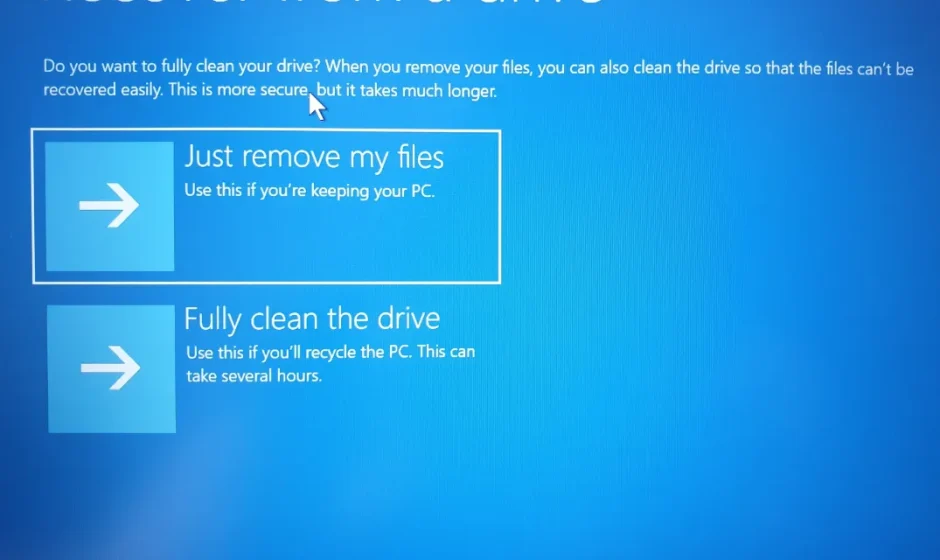
- Choose between:
- Keep my files: Windows reinstalls while keeping your personal files.
- Remove everything: A complete reset for a fresh start.
- Follow the on-screen instructions. Depending on your system, this process can take from 30 minutes to a few hours.
- Reinstall Applications and Restore Files: Once the reset is complete, reinstall your essential software (e.g., browsers, office tools). Then, restore your backed-up files and organize them as needed.
Frequently Asked Questions
Q1: Does resetting Windows delete everything?
If you select “Remove everything,” it will erase all files, apps, and settings. If you choose “Keep my files,” your personal documents are preserved, but apps and settings will be removed.
Q2: How long does a reset take?
It depends on your hardware and data size. On average, it takes between 30 minutes to 2 hours.
Q3: Will resetting improve gaming performance?
Yes, if background clutter or conflicting drivers were slowing things down, a reset can lead to noticeable performance improvements.
Q4: Can I reset Windows without losing my Microsoft activation?
Yes, Windows should retain your activation key after a reset, as long as you’re reinstalling the same version of Windows.
Final Thoughts
While regular resets used to be a common maintenance practice for power users, modern Windows systems don’t degrade as quickly. As long as you keep your system updated and maintain it well, you may never need to reset it.
However, if performance issues arise, malware infections occur, or your system becomes unstable, resetting is often the quickest and most effective solution. Think of it as an occasional spring cleaning — not something you do every year, but something you do when things get too cluttered.